Customer Self-Service Portal
Use the ISPbills customer self-service portal to manage an internet account, bills, packages, usage and support
The customer portal gives each subscriber a private view of their ISP account. Available features depend on the customer type and the options enabled by the ISP administrator.
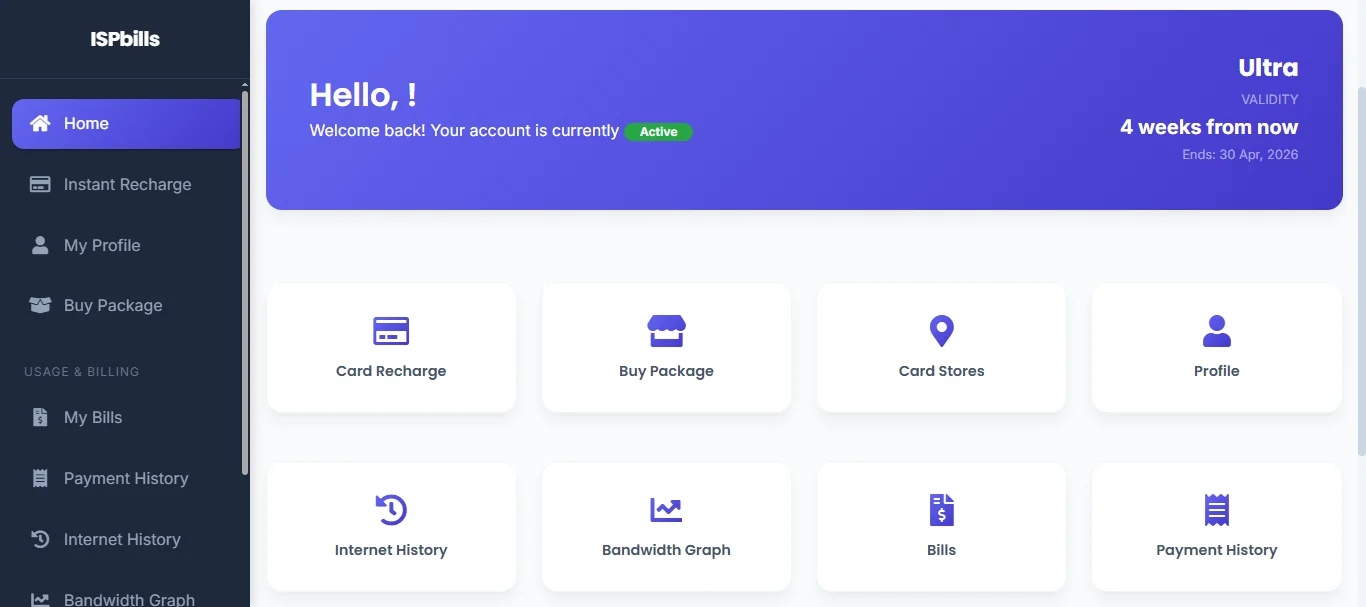
The responsive dashboard keeps service status, package validity, billing and support actions in one workspace.
Sign in and recover your customer ID
- Open the portal address provided by your ISP.
- Enter your Customer ID and registered Mobile Number.
- Select Submit.
If you do not know your customer ID, select Forgot Customer ID and follow the mobile-number recovery flow. Your ISP must have a valid mobile number on your account. Some accounts must also complete SMS mobile verification before support features become available.
Never share an OTP, password or payment verification code with anyone. ISP staff do not need these codes to inspect your account.
Portal navigation
| Page | What you can do |
|---|---|
| Dashboard | Review connection status, current package, validity and the most common account actions. |
| Instant Recharge | Apply a recharge card when online account recharge is enabled. |
| Packages | Compare eligible packages and purchase or renew service when self-service recharge is enabled. |
| Internet History | Review RADIUS sessions, duration and transferred data. |
| Bandwidth | View live traffic and usage charts for the available accounting data. |
| My Bills | Review unpaid bills and start a secure online payment. |
| Payment History | Review recorded payments and their status. |
| My Profile | Review your contact, connection and subscription information. |
| Support Tickets | Create a support request, read replies and follow its status. |
| Card Stores | Find available recharge-card stores or distributors. |
Your ISP may hide Recharge, Packages, or Edit Profile. These controls are administrator policies, not portal errors.
Buy or renew a package
- Open Packages.
- Review the package price, validity, speed and any data limit.
- Select the package and confirm the purchase method.
- Complete payment if the package requires an online gateway or recharge balance.
- Return to Dashboard and confirm the new package and expiry date.
Hotspot customers may also buy internet time through the captive portal. Package availability is controlled by the ISP and can differ by customer type.
Pay a bill
Open My Bills, select the unpaid bill, choose a payment method, and select Pay securely. The payment methods shown are the gateways configured by your ISP. Do not close the provider page until it returns you to ISPbills. Check Payment History afterward; a gateway payment can remain pending while it is verified.
You can also use a recharge card where supported. A card can be rejected if it is invalid, expired, already used, outside its permitted reseller scope, or insufficient for the selected transaction.
Usage and live traffic
Internet History and Bandwidth use RADIUS accounting records. A missing interval does not necessarily mean the connection was offline; the router or RADIUS server may not have sent accounting updates. Live traffic is available only for compatible routers with a working connection to the platform.
Update profile or replace a MAC address
When enabled, select Edit Profile to update the fields your ISP permits. Network identifiers and billing ownership cannot be changed from the portal.
Use Replace MAC Address after changing a bound router or device. Enter the new MAC address in the format requested by the page. The ISP may require verification or may disable self-service replacement for security.
Create a support ticket
- Complete mobile verification if prompted.
- Open Support Tickets and select New Ticket.
- Choose the relevant category, describe the issue clearly and submit it.
- Return to Support Tickets to read replies and track status.
For urgent loss of service, include when the problem started and whether the router shows an optical, PPPoE or WiFi error. Do not include passwords or OTPs.
Troubleshooting
| Problem | Check |
|---|---|
| Login fails | Confirm the Customer ID, registered mobile number and ISP portal address; then use ID recovery or contact the ISP. |
| OTP does not arrive | Confirm the saved mobile number and wait before requesting another code. |
| Package or recharge menu is missing | The ISP has disabled online self-service for the account. |
| Payment remains pending | Keep the provider transaction reference and contact the ISP; do not pay repeatedly. |
| Usage is blank | Ask the ISP to verify RADIUS accounting and router connectivity. |
| Support Tickets is unavailable | Complete mobile verification first. |