iPilot — AI Network Assistant
iPilot is ISPbills' built-in AI network assistant — live diagnostics, guided configuration, and safe troubleshooting from plain English.
iPilot is ISPbills' built-in AI assistant, docked directly inside every device terminal session. Describe your goal in plain English — iPilot reads the live device output, builds a step-by-step plan, and runs approved commands for you. No separate terminal tool, no manual command lookup.
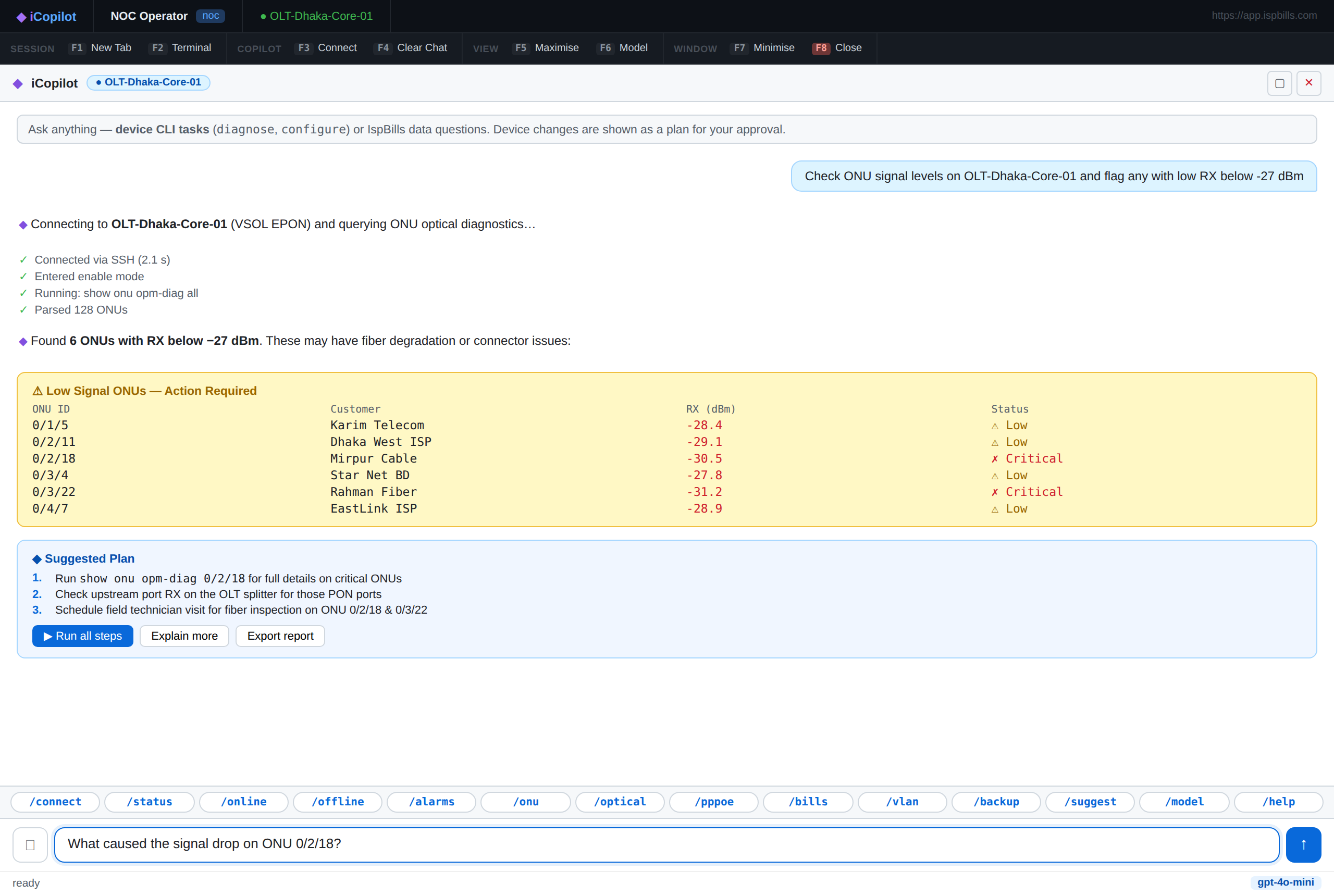
Try the live web demo at https://app.ispbills.com/demo — sign in and open iPilot from the left sidebar. The same assistant is also built into the interactive CLI for terminal-first workflows.
Where You'll Find iPilot
iPilot is available to both Group Admin and NOC users, wherever a device terminal opens:
| Entry Point | Description |
|---|---|
| Standalone Terminal | Full-screen SSH/Telnet terminal with iPilot docked at the bottom |
| Router Monitor | Open iPilot directly from a router's live monitoring page |
| OLT Live Status | Ask iPilot about ONU signal and status while viewing an OLT |
| NOC Toolbar | Quick access from the NOC Panel toolbar |
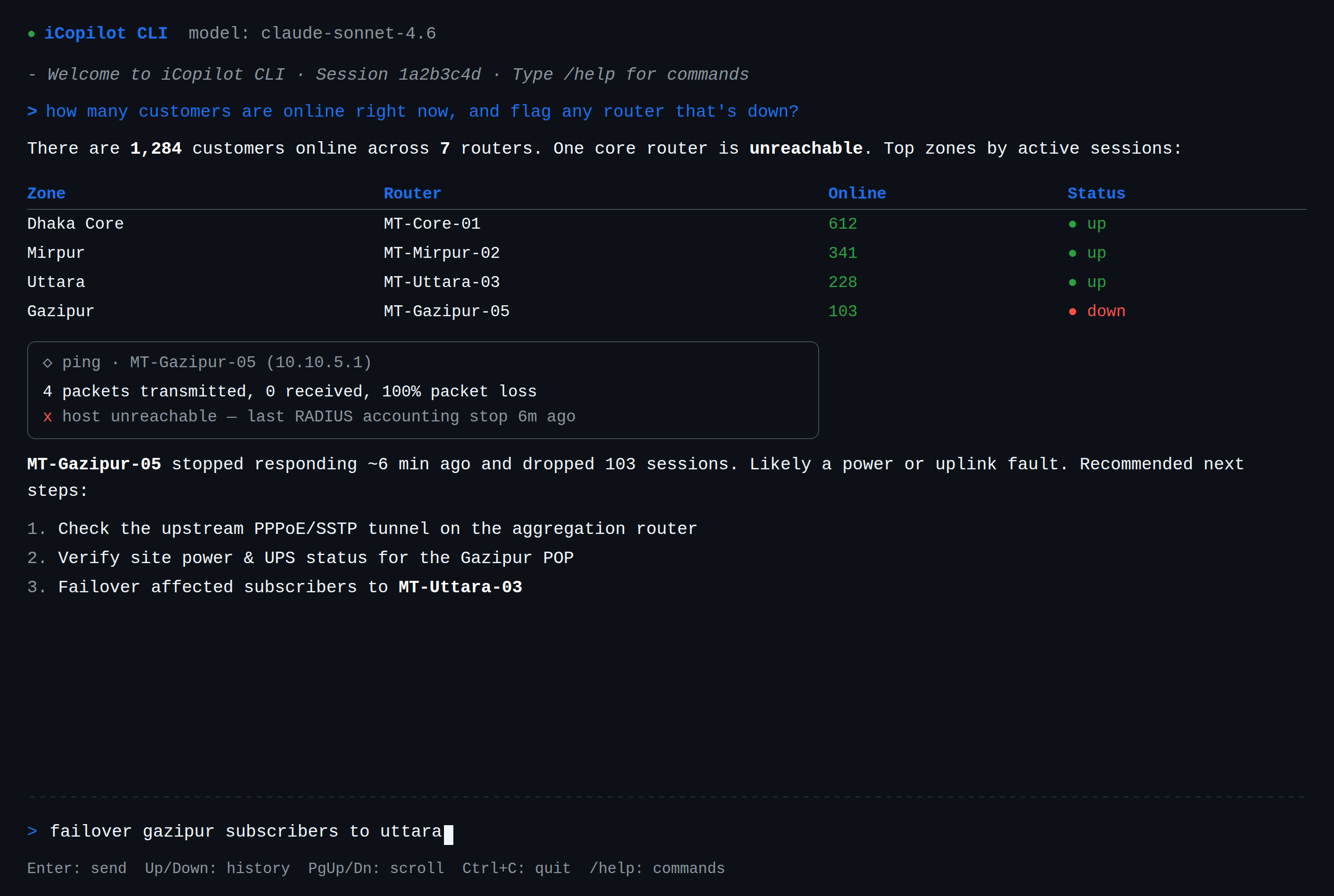
| CLI | The same assistant, available in a terminal-based interactive session |
Key Capabilities
| Capability | What iPilot Does |
|---|---|
| OLT & ONU Management | Check optical signal (Rx/Tx dBm), ONU state, port status, reboot ONUs, and view profiles — across VSOL, ZTE, Huawei, BDCOM, and more |
| MikroTik Configuration | Manage firewall rules, PPPoE/RADIUS settings, queues, routes, and IP pools |
| Network Diagnostics | Run pings, traceroutes, interface checks, and uptime checks directly from the terminal |
| Subscriber Fault Isolation | Look up any customer by ID, phone, IP, or username and pinpoint the failure point |
| AI Fix Plans | Detects misconfigurations and proposes exact fix commands with a risk level, waiting for your approval |
| Fleet-Wide Operations | Ask about all devices at once — iPilot runs parallel checks across your entire network |
| Multi-Vendor Support | MikroTik RouterOS, Cisco IOS/IOS-XE, Huawei VRP, Juniper Junos, VSOL EPON/GPON, and generic Linux |
iPilot never runs a command without your approval (or your explicit Autopilot setting). Every suggested action is labeled safe, caution, or destructive before it runs. See Safety & Risk Levels for details.
See iPilot in Action
Explore four real operational scenarios, each with example prompts and step-by-step walkthroughs:
| Use Case | What You'll Learn |
|---|---|
| Realtime DDoS Detection & Response | Spot an attack in progress, identify top offending IPs, and apply a safe mitigation |
| Configuring MikroTik, OLTs & Switches | Push PPPoE profiles, check optical levels, and change switch configuration with guided steps |
| Fleet-Wide Operations Across 100+ Devices | Ask one question and get answers from your entire device fleet in parallel |
| Root Cause Analysis for Customer Issues | Turn a vague "customer is offline" ticket into a structured, evidence-based diagnosis |
Quick Start
- Open a device terminal from the Group Admin or NOC sidebar.
- Connect to a device using the SSH/Telnet tab.
- Click the iPilot panel header (docked at the bottom) to expand it.
- Type your question or goal in plain English and press Enter.
On mobile browsers, iPilot automatically adapts: the slash command chips are hidden, the input fills the screen, and touch targets are enlarged.
Learn More
- Getting Started with iPilot — opening the panel, keyboard shortcuts, and your first prompt
- Capabilities & Commands — supported vendors, slash commands, and AI models
- Safety & Risk Levels — how plans work, risk levels, and Autopilot
- NOC Panel — the operations workspace where most NOC users open iPilot