Gateway Transactions
The Gateway Transactions page shows every transaction that has been initiated through a connected payment gateway — including payments that are pending verification, approved, or rejected. It gives you full visibility into your payment gateway activity within ISPBills.
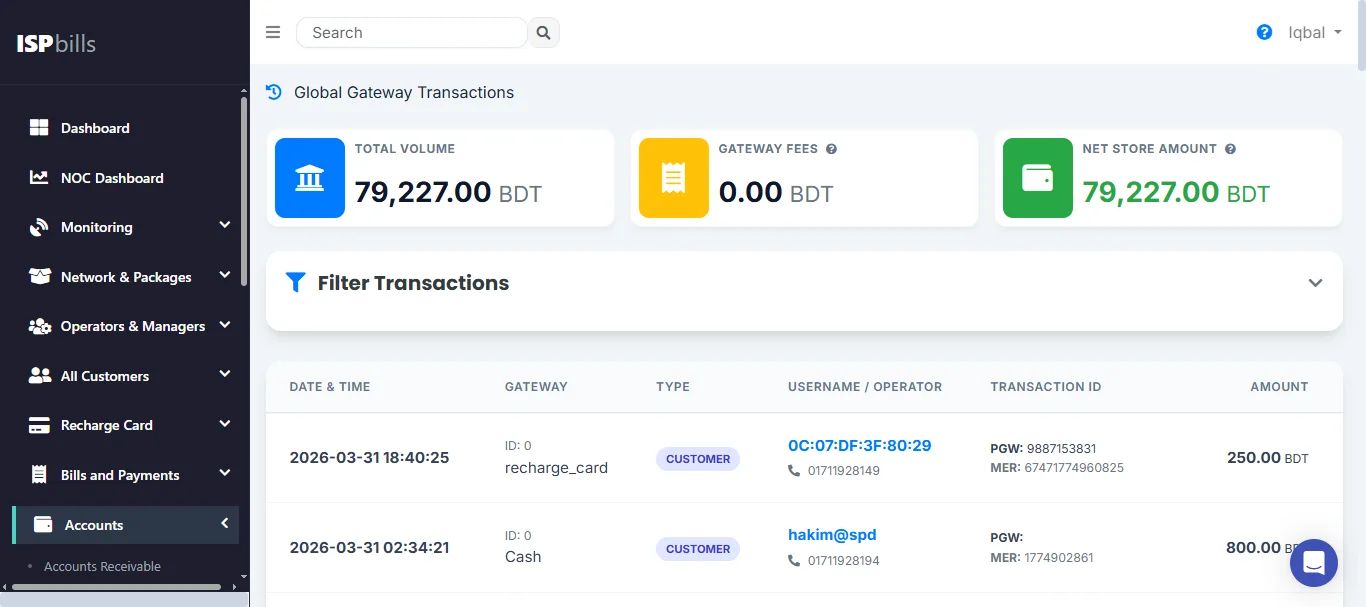
Accessing Gateway Transactions
Navigate to Accounts > Gateway Transactions (or All Transactions) in the left sidebar.
Supported Payment Gateways
ISPBills can connect to multiple payment gateways. Gateway transactions from all connected gateways appear in this log:
| Gateway | Region |
|---|---|
| bKash | Bangladesh |
| Nagad | Bangladesh |
| SSL Commerz | Bangladesh |
| Other configured gateways | Per ISP settings |
See Settings > Payment Gateways to configure which gateways are active for your ISP.
What This Page Shows
Each row represents a single gateway transaction:
| Column | Description |
|---|---|
| Transaction ID | The unique identifier assigned by the payment gateway. |
| Customer | The customer who initiated the payment. |
| Amount | The payment amount attempted. |
| Gateway | The payment gateway used (bKash, Nagad, SSL Commerz, etc.). |
| Status | Current transaction status: Pending, Approved, or Rejected. |
| Date & Time | When the transaction was initiated by the customer. |
| Verified By | The operator who approved or rejected the transaction (if manually verified). |
| Verified At | Date and time of verification. |
Transaction Status Explained
| Status | Meaning |
|---|---|
| Pending | The customer has initiated a payment but it has not yet been verified or confirmed. |
| Approved | The payment has been verified and applied to the customer's account. The customer's balance is updated and their service is active. |
| Rejected | The payment was declined or found to be invalid and was not applied. |
Relationship to Verify Payments
Gateway transactions and the Verify Payments page (Bills & Payments > Verify Payments) are closely linked:
- When a customer submits a payment through a gateway, it appears as Pending in both Gateway Transactions and Verify Payments.
- An operator reviews the transaction in Verify Payments and approves or rejects it.
- Once approved, the transaction status changes to Approved here, and the payment appears in Customer Payments.
Think of it this way:
- Gateway Transactions = complete log of all gateway activity (all statuses).
- Verify Payments = the action queue for pending transactions only.
- Customer Payments = the ledger of approved, completed payments.
Filtering and Searching
| Filter | Description |
|---|---|
| Date Range | Show transactions within a specific date range. |
| Gateway | Filter to a specific payment gateway. |
| Status | Show only Pending, Approved, or Rejected transactions. |
| Customer / Transaction ID | Search by customer name, username, or gateway transaction ID. |
Exporting Transaction Records
- Apply any desired filters.
- Click Export to Excel or Export to CSV.
- Use the export for reconciliation with your payment gateway's merchant dashboard.
Reconciliation with Gateway Merchant Dashboards
For accurate financial reconciliation:
- Export the Gateway Transactions log for a given period (e.g., the previous month).
- Log in to your payment gateway's merchant portal (e.g., bKash Merchant Dashboard, Nagad Dashboard).
- Download the gateway's transaction report for the same period.
- Compare transaction IDs, amounts, and statuses between the two reports.
Any transaction that appears in the gateway dashboard but not in ISPBills (or vice versa) should be investigated immediately.