Maps
Configure and use the five ISPBills map workspaces for network topology, service assurance, outside plant, custom network documentation, and serviceability planning.
Maps
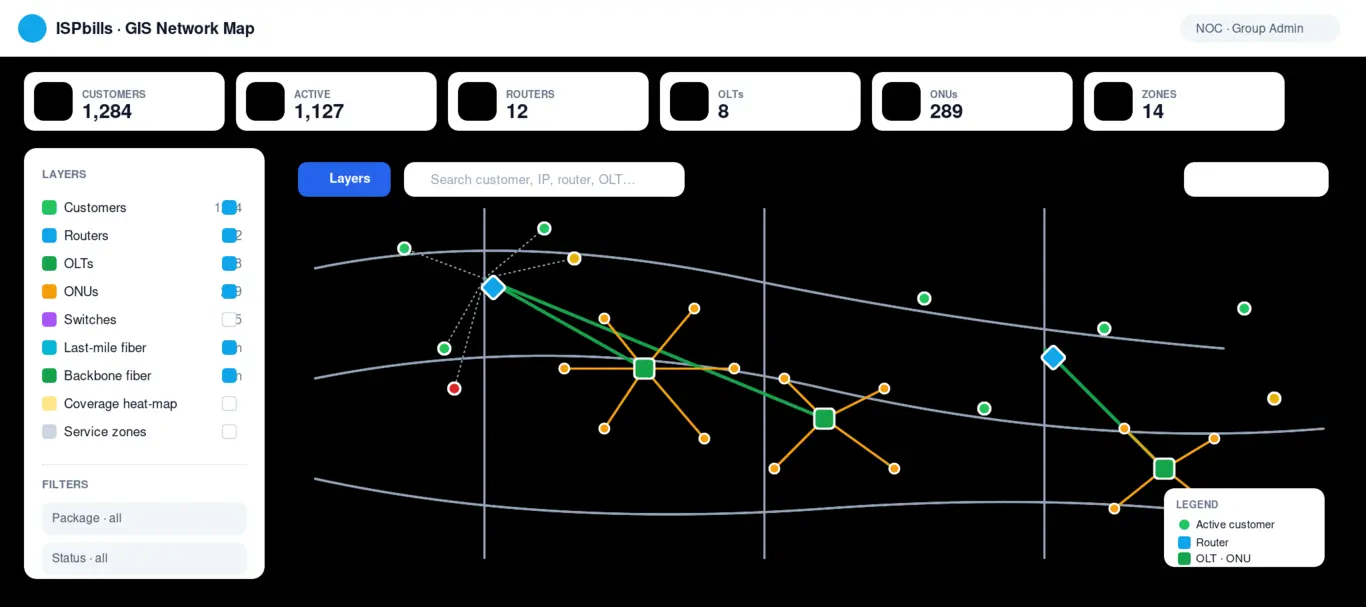
ISPBills Maps combines logical network topology, field infrastructure, service assurance, and expansion planning. Open Insights → Maps from the admin sidebar.
Available workspaces
| Workspace | Primary use |
|---|---|
| Auto Network Map | Automatically view Router → OLT → ONU → Customer relationships |
| Custom Map Editor | Manually document assets and physical links |
| Network Operations | Locate outages, offline subscribers, and optical alarms |
| Network & Outside Plant | Maintain the geographic network inventory |
| Planning & Serviceability | Evaluate demand, coverage, and expansion candidates |
Before you begin
Group administrators must configure their own Google Maps API key in Settings → App Settings → Maps & Google Maps. Enable the Maps JavaScript API and Geocoding API in Google Cloud. Each group’s key is isolated from other groups.
The Auto Network Map does not need geographic coordinates because it uses configured database relationships. Geographic workspaces require valid latitude and longitude values for useful results.
The application sidebar automatically collapses on Map pages to provide more working space. Use the normal sidebar toggle to expand it.
Configure Google Maps
Only the Group Admin needs to complete this setup.
- Open Settings → App Settings.
- Locate Maps & Google Maps.
- Open Google Cloud Console in a new window.
- Create or select a project and enable Maps JavaScript API and Geocoding API.
- Create an API key. Add your ISPBills application domain under website/referrer restrictions.
- Paste the key into Google Maps API Key and save.
- Return to Insights → Maps and reload the page.
Do not place the key in the server .env file for Maps. ISPBills stores a separate key for each group so one group cannot consume another group's quota.
Roles and permissions
| Action | Group Admin | Operator / Sub-Operator |
|---|---|---|
| View Auto Network Map | Yes | Yes, limited to assigned data |
| View Operations, Outside Plant, and Planning | Yes | Yes, limited to assigned data |
| Create or edit Custom Map assets | Yes | No |
| Draw service/build territories | Yes | Subject to role access |
| Change customer coordinates | Yes | Subject to customer access |
Data preparation checklist
For useful maps, complete these records first:
- Assign every OLT to its correct NAS/Core Router.
- Synchronize ONUs and confirm every ONU belongs to the correct OLT.
- Assign customer ONUs where fibre service is used; otherwise confirm the customer router.
- Add accurate coordinates to customers, routers, OLTs, and field devices.
- Configure operator locations and service territories where applicable.
Troubleshooting
| Symptom | Cause and action |
|---|---|
| Google map is blank | Confirm the group API key, enabled APIs, billing, and referrer restrictions. |
| “Google Maps API key is not configured” | Group Admin must save a key in Settings → App Settings. |
| Equipment appears at one location | Those records lack coordinates and are using a parent/group fallback. Add real coordinates. |
| Data belongs to another operator | Verify the logged-in role and the record's operator assignment. Map APIs enforce tenant/operator scope. |
| Recent changes are missing | Select Refresh or reload after changing Router, OLT, ONU, or Customer assignments. |