MikroTik Monitor
Overview
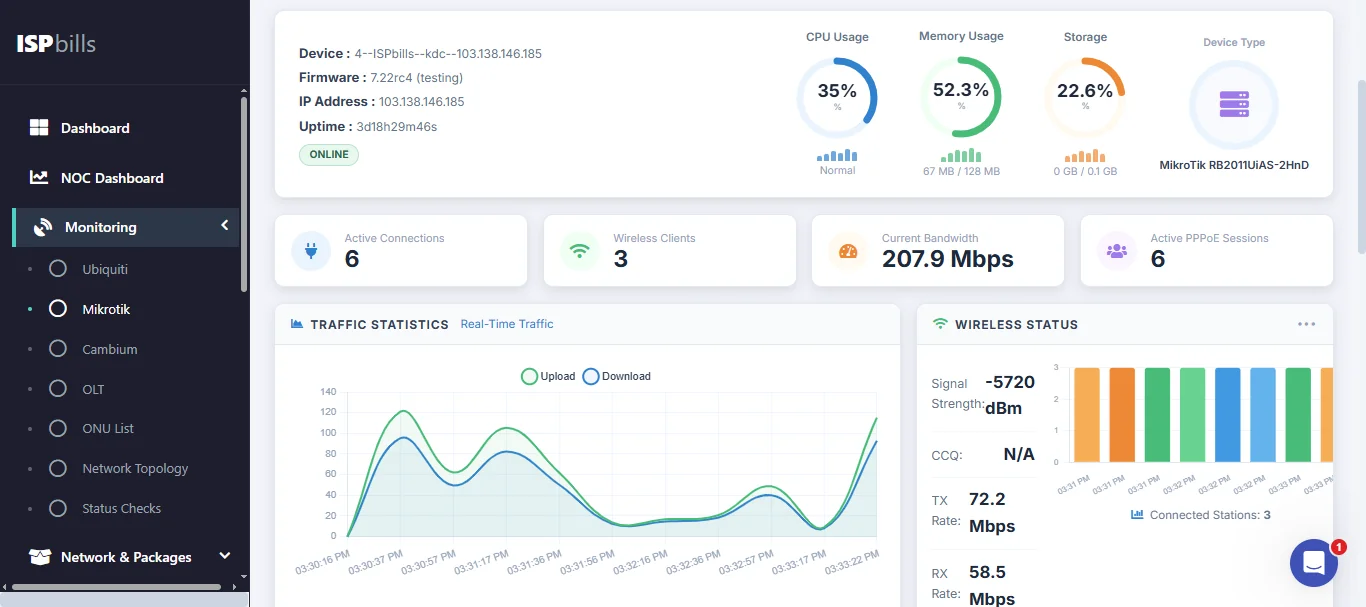
The MikroTik monitoring section provides real-time visibility into the MikroTik routers that form the backbone of your ISP network. You can view live interface traffic graphs, check router availability, inspect active PPPoE sessions, and review resource utilisation — all without leaving ISPBills.
Prerequisites
Before a MikroTik router appears in the monitoring section, it must first be registered in Routers & Packages › Routers. Make sure the router's API credentials and IP address are correctly configured there so that ISPBills can establish a connection.
Router Status
The router list shows whether each router is currently Online or Offline. An offline indicator means ISPBills could not reach the router's API at the last polling interval, which may signal a connectivity issue or a device reboot.
PPPoE Interface Traffic Graphs
For each router, ISPBills generates RRD (Round-Robin Database) traffic graphs for PPPoE interfaces. These graphs plot inbound and outbound throughput over time, letting you identify traffic spikes, capacity saturation, or unusual usage patterns across different time ranges (hourly, daily, weekly, monthly).
Connected PPPoE Sessions
The monitoring view lists the PPPoE sessions currently active on the router, showing which customers are online at any given moment. This is useful for confirming that a customer's connection has come up after troubleshooting, or for quickly counting the number of simultaneous sessions on a given router.
CPU and Memory Usage
Where the router's API exposes resource data, ISPBills will display current CPU load and memory usage figures. High CPU or memory values may indicate that the router is under stress and may need attention or a capacity upgrade.
Running Interface Traffic
In addition to PPPoE-specific graphs, ISPBills shows live traffic rates for all active interfaces on the router. This gives you an instant snapshot of which interfaces are carrying load and helps isolate which segment of the network is experiencing congestion.
Device Management (Live Configuration)
In addition to read-only monitoring, the MikroTik monitor also includes a Device Management panel that lets you push configuration changes to the router live over the RouterOS API — no Winbox or SSH required.
Accessing Device Management
- Navigate to Monitoring › MikroTik Monitor.
- Click the router you want to manage from the list.
- Scroll to the Device Management section below the live-status panels.
- Expand any of the accordion panels (VLAN, Bridge, IP Address, Firewall, System, …) to view, add, or remove entries.
Device Management requires the "Manage Router Devices" permission. Super Admin, Group Admin, and Developer roles have it automatically. NOC users only see the panel if a Group Admin has granted them the manage-router-devices permission under Role & Permissions.
Every change you make from this panel is written to an audit log (router, operator, action, timestamp, success/failure) that is visible in Monitoring › Access Logs.
VLAN Management
Create and remove VLAN sub-interfaces on the router without leaving the browser.
Create a VLAN
- Open the VLAN Management panel and click Add VLAN.
- Fill in:
- Name — a label for the VLAN interface (e.g.
vlan100). - VLAN ID — 1–4094 (the 802.1Q tag).
- Interface — the parent interface (e.g.
ether1,bridge-core) picked from the live interface list.
- Name — a label for the VLAN interface (e.g.
- Click Create VLAN. ISPBills runs
/interface/vlan/addon the router and returns a confirmation.
Delete a VLAN
Click the trash icon next to a VLAN row in the list. ISPBills calls /interface/vlan/remove using the VLAN's RouterOS .id.
Refresh reloads the list directly from the router at any time.
Bridge and Bridge Port Management
Under the same Device Management section, the Bridge and Bridge Port panels let you:
- List existing bridges and bridge ports.
- Add a new bridge (name + optional comment).
- Attach an interface to a bridge as a bridge port (bridge + interface + PVID).
- Remove bridges or bridge ports.
This is useful when you need to extend a VLAN across multiple physical ports without opening Winbox.
IP Address Management
From the IP Addresses panel you can:
- View all IPv4 addresses configured on the router.
- Add an IP/mask to a specific interface (e.g.
10.10.10.1/24onvlan100). - Edit the address or interface of an existing entry.
- Delete unused addresses.
Changes apply immediately — useful for bringing a new VLAN gateway live the moment you create the VLAN.
Firewall (Filter + NAT)
Two panels are provided:
- Firewall Filter — list, add, delete, and toggle (enable/disable) filter rules.
- Firewall NAT — list, add, and delete NAT rules (e.g. masquerade, dst-nat).
Each "Add" form exposes the common RouterOS fields (chain, action, src/dst address, protocol, port, in/out-interface). ISPBills forwards the values directly to /ip/firewall/filter/add or /ip/firewall/nat/add.
Toggling a filter rule is the safest way to temporarily test the effect of a rule — it avoids deleting and re-creating it.
Rogue DHCP Detection
From the main MikroTik live-status page (above Device Management), click Rogue DHCP to scan the router's bridge interfaces for unauthorised DHCP servers on the LAN. You can:
- Run an on-demand scan.
- Use Rogue DHCP Setup to whitelist your legitimate DHCP servers.
- Toggle alert-on-detect so ISPBills logs an entry whenever an unknown DHCP server is seen.
System Management (Reboot + RouterOS Update)
The System panel in Device Management provides two maintenance actions for the router itself:
Reboot the Router
Click Reboot to issue a /system/reboot command. ISPBills asks for confirmation first, logs the operator action to the audit log, and returns control as soon as the command is accepted. The router will briefly drop offline while it restarts.
Update RouterOS
ISPBills can check the router's update channel and install a new version without you logging into Winbox.
- Open the System panel and click Check for Updates.
- ISPBills calls
/system/package/update/check-for-updatesand then/system/package/update/print, returning:- Current version — the RouterOS version currently running.
- Channel —
stable,long-term,testing, ordevelopment(whichever is set on the router). - Latest version — the latest version available on that channel.
- Update available — Yes / No.
- If an update is available, click Install Update. ISPBills calls
/system/package/update/install. The router downloads the package and reboots automatically to apply it.
Installing a RouterOS update always reboots the device. Plan updates inside a maintenance window — customers on that router will disconnect briefly. If you need to change the update channel (stable vs long-term), do that first from Winbox (System › Packages › Check for Updates › Channel); ISPBills uses whatever channel is already configured on the router.
Every reboot and update action is recorded in Monitoring › Access Logs with the operator's name, the router, and the outcome so you have a full trail of who upgraded what and when.